Showing posts with label Tutorials. Show all posts

Thursday, 19 November 2015

How to: Add Social Media Icons

Hey Everybody! today I am going to b telling you how to add social media icons to your blog!Hope you find it Useful and ENJOY!


 Step 1:

Search for you social media icon that you want in google or any website you want, I personally like the website: http://www.carrieloves.com/2012/12/free-social-media-icons-updated/ Because it has a lot of options of colors.


Step 2:

Download your chosen Icon. Open the document/picture in your Laptop. You can also chose what size you want it to be. Then, open your blog and click New post. Paste your icons there.


Step 3:

 Press the your chosen icon and press link, there should be a pop up box. Write your link to the website you want it to go to when someone press on it.


Step 4:

After all that, press the HTML button in the top left side of your screen. It should look like this:


Step 5:

 Copy the HTML and save the file DO NOT PUBLISH IT! Open layout in the blogger dashboard, and press "add a gadget" Press "add HTML/JavaScript" after there is a pop up box and paste your HTML code there.


Step 6:

 Press save and VOILA your done! Press view blog to see if it works.


Thank you for reading my tutorial! I hope you found it useful and I am very sorry if it's confusing. BYEEE




Wednesday, 9 September 2015

How to change your Blog's Cursor (Windows)

Hello everyone!, i'm back! today i'm going to show you a tutorial on how to change your blog's cursor, hope it helps!

Step 1:

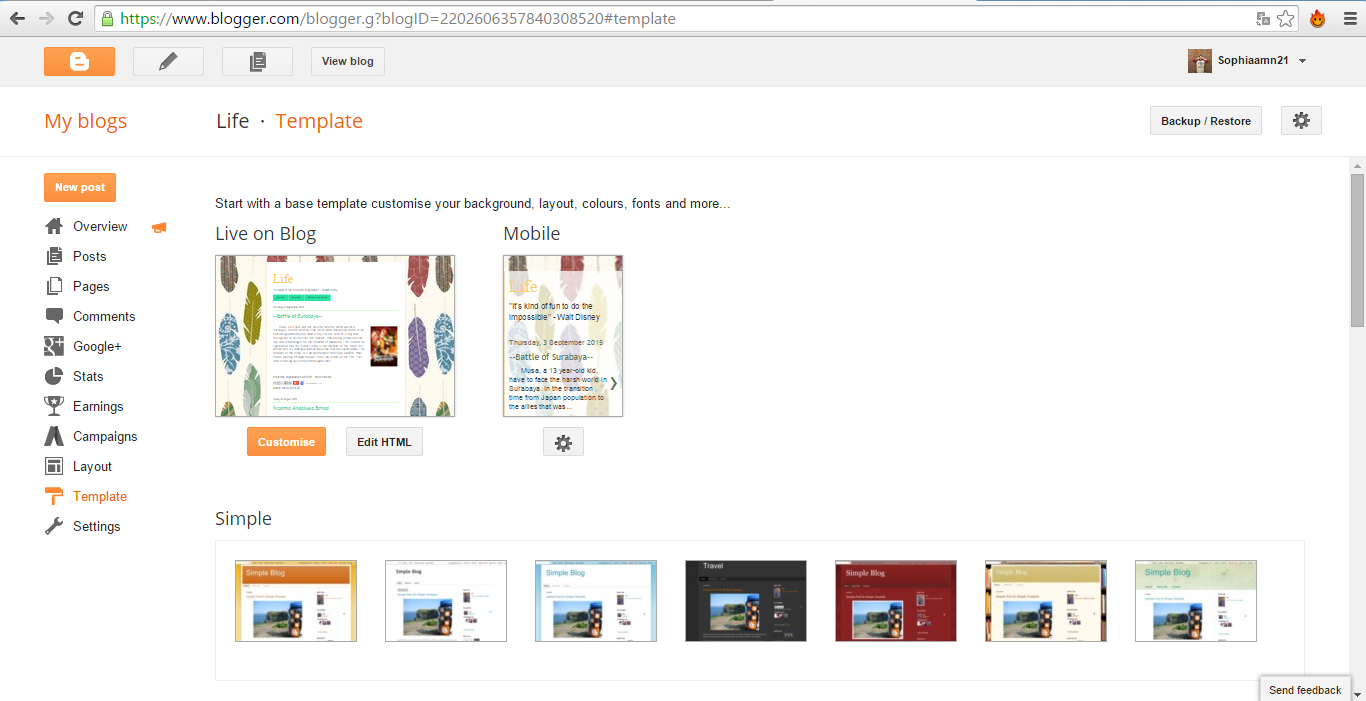
1) Search "Cursor 4u" in Google.


2) After you opened http://www.cursors-4u.com/  Choose one cursor that you want for your blog.


3) Then, press the blogger/blogspot tag, if you are using the old blogger, copy the old html for the old version, if you are using the new blogger, copy the new html for your blog.


4)Open your blogger account, then open template, and press edit HTML.


5) Go the the very bottom (maybe number 2146) and paste your cursor's html in the middle of the  </b:section-contents>COPY HERE</html>  press save template and you are all set for your ne cursor.


Hope this tutorial helps to make your blog even more Awesome! :)


The Moon